You cannot select more than 25 topics
Topics must start with a letter or number, can include dashes ('-') and can be up to 35 characters long.
 9f0d2837ed
Applying those works on Fedora Atomic! It should work the same on OpenSuse microOS as on regular OpenSuse too. |
3 years ago | |
|---|---|---|
| assets | 3 years ago | |
| backgrounds | 5 years ago | |
| common | 6 years ago | |
| config | 5 years ago | |
| LICENSE | 9 years ago | |
| README.md | 4 years ago | |
| banner.png | 5 years ago | |
| flake.nix | 3 years ago | |
| install.sh | 3 years ago | |
| preview.png | 4 years ago | |


README.md

Installation:
Usage: sudo ./install.sh [OPTIONS...]
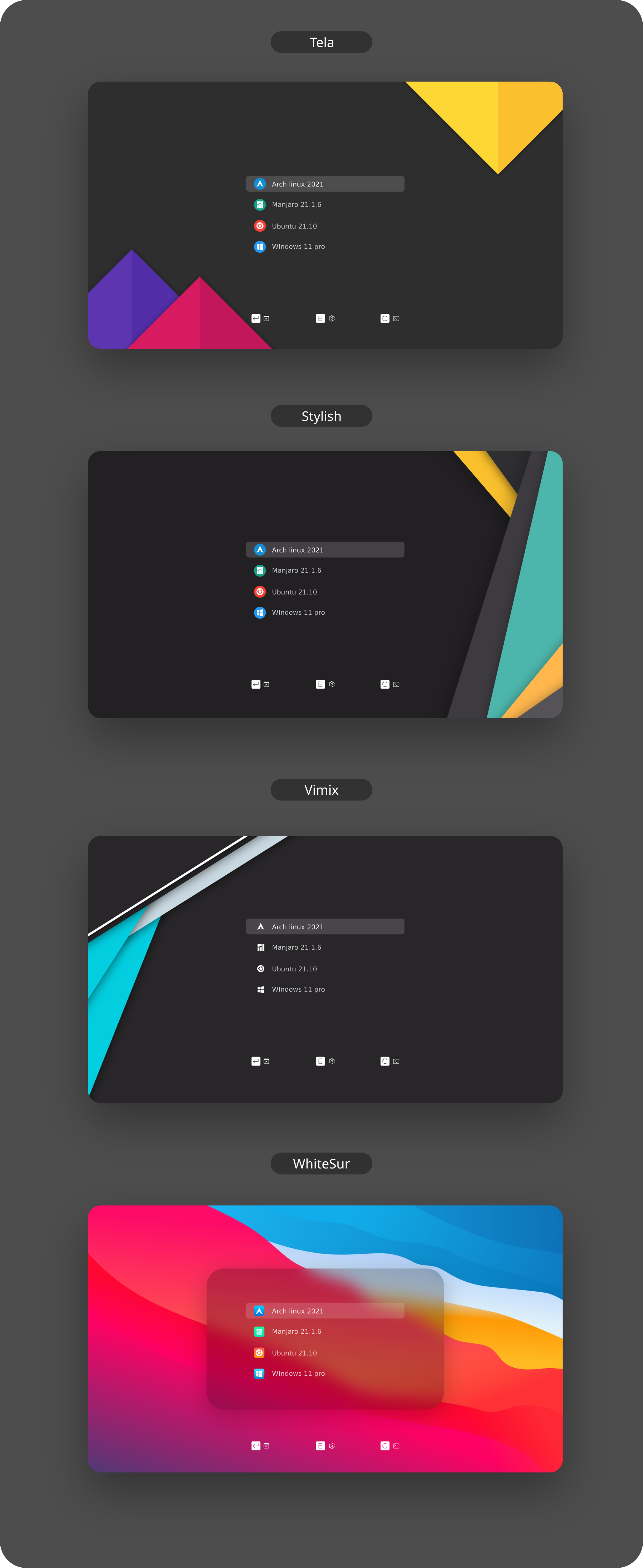
  -t, --theme     theme variant(s)          [tela|vimix|stylish|whitesur]       (default is tela)
  -i, --icon      icon variant(s)           [color|white|whitesur]              (default is color)
  -s, --screen    screen display variant(s) [1080p|2k|4k|ultrawide|ultrawide2k] (default is 1080p)
  -r, --remove    Remove theme              [tela|vimix|stylish|whitesur]       (must add theme name option, default is tela)

  -b, --boot      install theme into '/boot/grub' or '/boot/grub2'
  -g, --generate  do not install but generate theme into chosen directory       (must add your directory)

  -h, --help      Show this help
If no options are used, a user interface dialog will show up instead
Examples:
- Install Tela theme on 2k display device:
sudo ./install.sh -t tela -s 2k
- Install Tela theme into /boot/grub/themes:
sudo ./install.sh -b -t tela
- Uninstall Tela theme:
sudo ./install.sh -r -t tela
Issues / tweaks:
Correcting display resolution:
- On the grub screen, press
cto enter the command line - Enter
vbeinfoorvideoinfoto check available resolutions - Open
/etc/default/grub, and editGRUB_GFXMODE=[height]x[width]x32to match your resolution - Finally, run
grub-mkconfig -o /boot/grub/grub.cfgto update your grub config
Setting a custom background:
- Make sure you have
imagemagickinstalled, or at least something that providesconvert - Find the resolution of your display, and make sure your background matches the resolution
- 1920x1080 >> 1080p
- 2560x1080 >> ultrawide
- 2560x1440 >> 2k
- 3440x1440 >> ultrawide2k
- 3840x2160 >> 4k
- Place your custom background inside the root of the project, and name it
background.jpg - Run the installer like normal, but with -s
[YOUR_RESOLUTION]and -t[THEME]and -i[ICON]- Make sure to replace
[YOUR_RESOLUTION]with your resolution and[THEME]with the theme
- Make sure to replace
Contributing:
- If you made changes to icons, or added a new one:
- Delete the existing icon, if there is one
- Run
cd assets; ./render-all.sh
- Create a pull request from your branch or fork
- If any issues occur, report then to the issue page
Preview: