You cannot select more than 25 topics
Topics must start with a letter or number, can include dashes ('-') and can be up to 35 characters long.
 960ac1a172
1, update deepin icons to make the icon closer to the deepin logo, while also making the style suitable for this theme. 2, update brunch-settings icon for colors-white.svg, whitch has a different style effect from other icons of the colors-white style. 3, remove redundant element "g536" in group xubuntu for logos-whitesur.svg. 4, fine tune icon parameters like X,Y,width,height datas in SVG files, whitch has uncorrect datas. For example, all icon group in svg files are supposed to be 32.000x32.000, but a few icons are 32.001x32.001, and more... |
3 years ago | |
|---|---|---|
| assets | 3 years ago | |
| backgrounds | 5 years ago | |
| common | 6 years ago | |
| config | 5 years ago | |
| LICENSE | 9 years ago | |
| README.md | 4 years ago | |
| banner.png | 5 years ago | |
| flake.nix | 4 years ago | |
| install.sh | 3 years ago | |
| preview.png | 4 years ago | |


README.md

Installation:
Usage: sudo ./install.sh [OPTIONS...]
  -t, --theme     theme variant(s)          [tela|vimix|stylish|whitesur]       (default is tela)
  -i, --icon      icon variant(s)           [color|white|whitesur]              (default is color)
  -s, --screen    screen display variant(s) [1080p|2k|4k|ultrawide|ultrawide2k] (default is 1080p)
  -r, --remove    Remove theme              [tela|vimix|stylish|whitesur]       (must add theme name option, default is tela)

  -b, --boot      install theme into '/boot/grub' or '/boot/grub2'
  -g, --generate  do not install but generate theme into chosen directory       (must add your directory)

  -h, --help      Show this help
If no options are used, a user interface dialog will show up instead
Examples:
- Install Tela theme on 2k display device:
sudo ./install.sh -t tela -s 2k
- Install Tela theme into /boot/grub/themes:
sudo ./install.sh -b -t tela
- Uninstall Tela theme:
sudo ./install.sh -r -t tela
Issues / tweaks:
Correcting display resolution:
- On the grub screen, press
cto enter the command line - Enter
vbeinfoorvideoinfoto check available resolutions - Open
/etc/default/grub, and editGRUB_GFXMODE=[height]x[width]x32to match your resolution - Finally, run
grub-mkconfig -o /boot/grub/grub.cfgto update your grub config
Setting a custom background:
- Make sure you have
imagemagickinstalled, or at least something that providesconvert - Find the resolution of your display, and make sure your background matches the resolution
- 1920x1080 >> 1080p
- 2560x1080 >> ultrawide
- 2560x1440 >> 2k
- 3440x1440 >> ultrawide2k
- 3840x2160 >> 4k
- Place your custom background inside the root of the project, and name it
background.jpg - Run the installer like normal, but with -s
[YOUR_RESOLUTION]and -t[THEME]and -i[ICON]- Make sure to replace
[YOUR_RESOLUTION]with your resolution and[THEME]with the theme
- Make sure to replace
Contributing:
- If you made changes to icons, or added a new one:
- Delete the existing icon, if there is one
- Run
cd assets; ./render-all.sh
- Create a pull request from your branch or fork
- If any issues occur, report then to the issue page
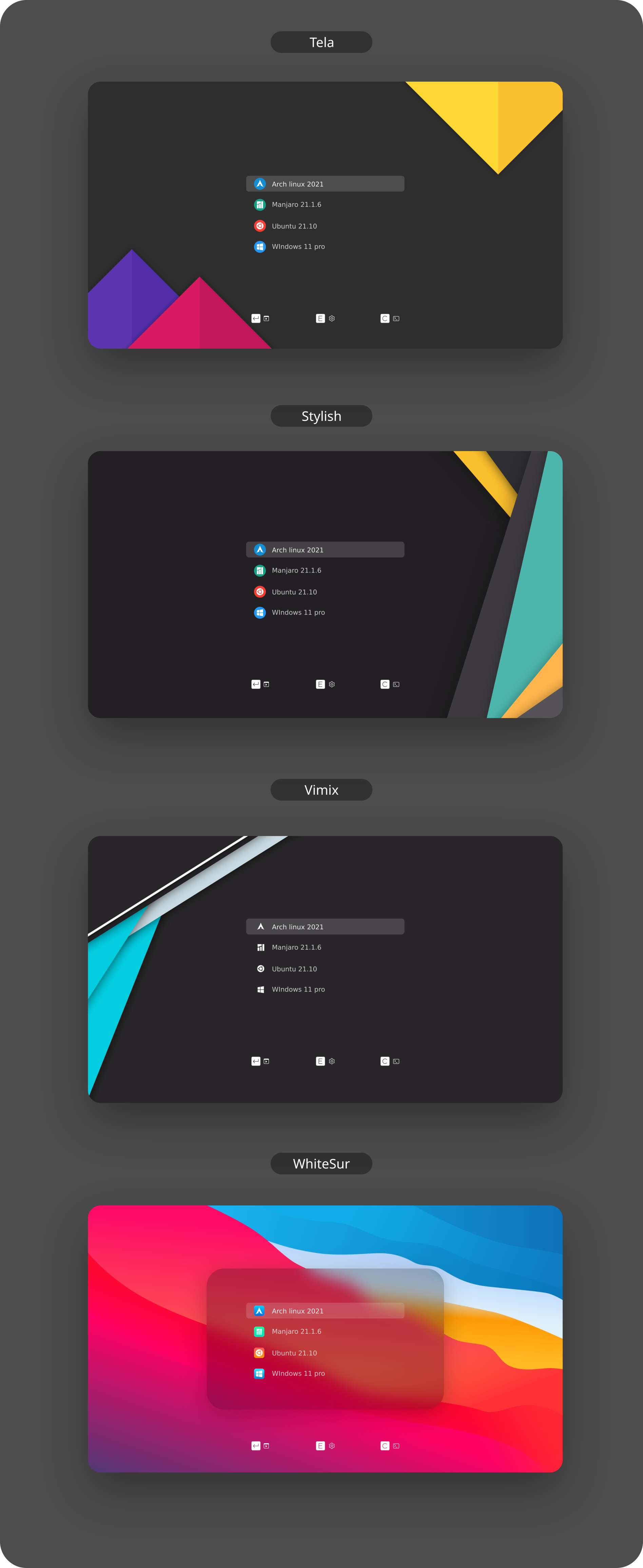
Preview: